
Skip to content
Production Wineglass

SC 02 · Tools · macOS

Storyboardlicious

Turn photos of posed figures into a shotlist and a print-ready storyboard.

Requires macOS 15 Sequoia or later

Screen 1Shot editor
The Storyboardlicious shot editor, with the shotlist in the sidebar and a shot's drawing, alternates and fields.

Storyboardlicious is a Mac app for building storyboards from photographs — typically small scenes staged with poseable figures and shot with the Mac’s camera or one plugged into it. Plan the shotlist, add pictures as you make them, work them into drawings in the app, and print the result as a PDF, one shot per page.
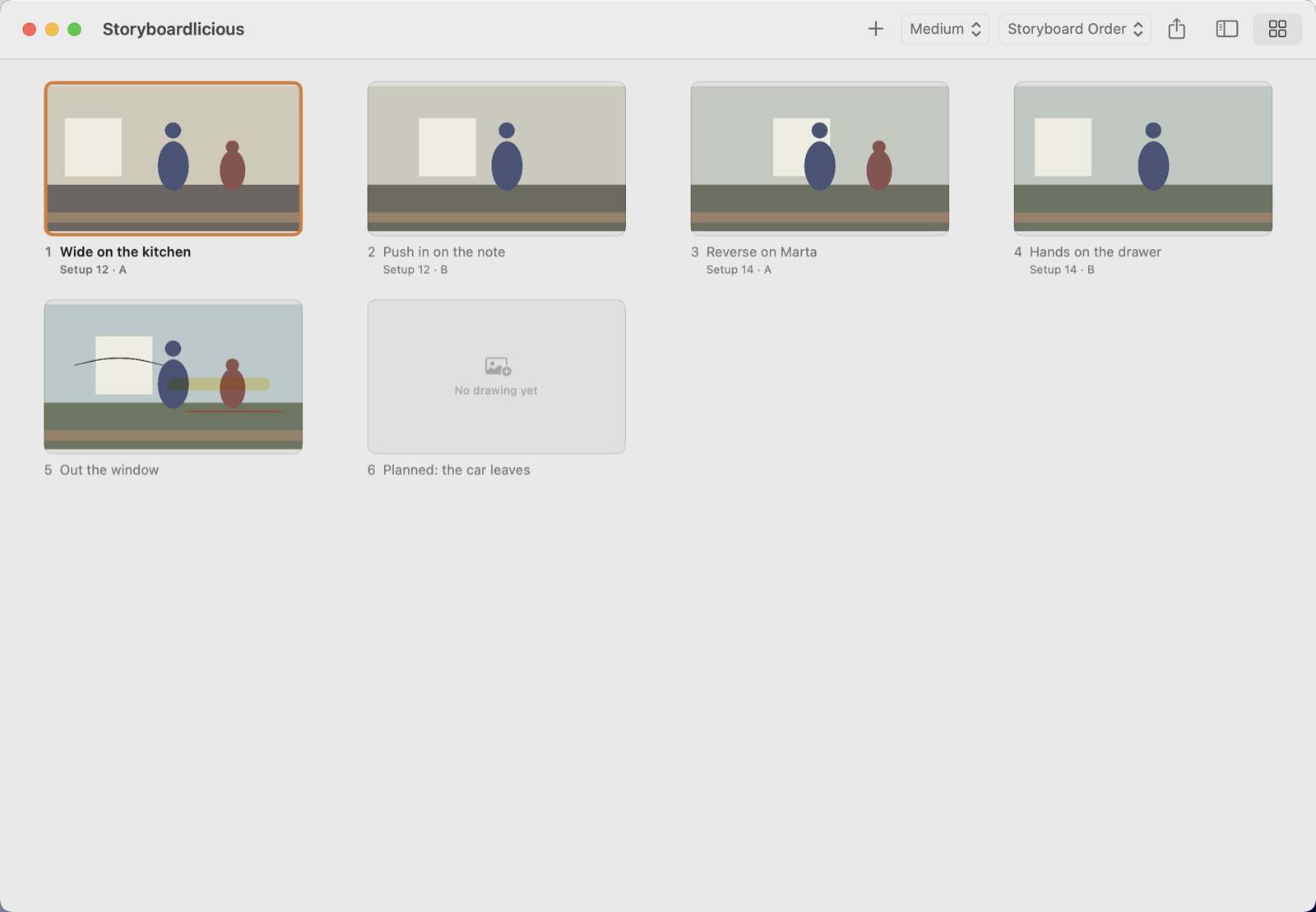
The board — every shot's drawing at once, in story or setup order.
Screen 2 · The board — every shot's drawing at once, in story or setup order.
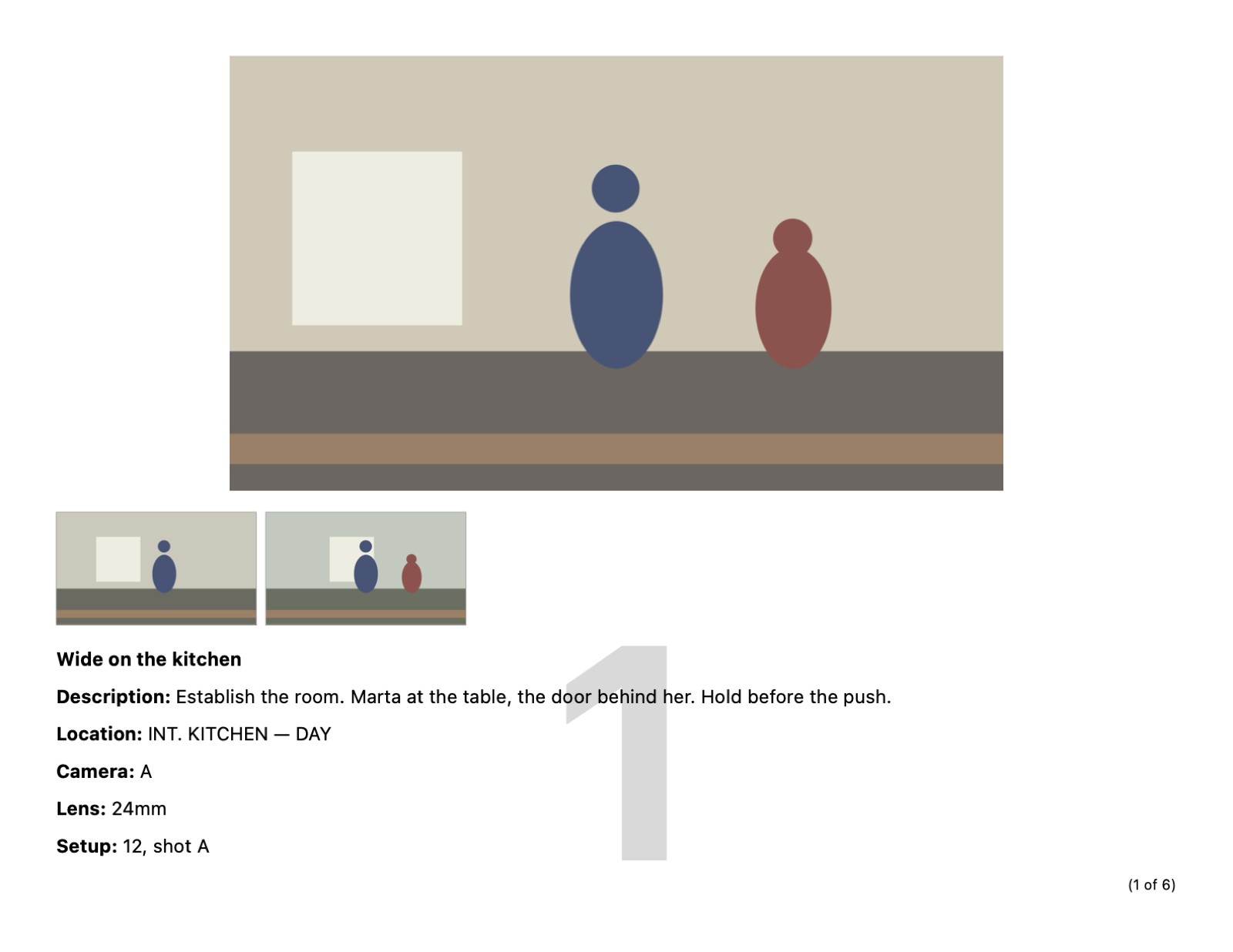
An exported page, with the shot number watermarked behind its fields.
Screen 3 · An exported page, with the shot number watermarked behind its fields.

Reference

Help

The same help that's built into the app — choose Help → Storyboardlicious Help, or press ⌘?.

Start Here

What It Is #

Photograph poseable figures, build a shotlist, print a storyboard.

Storyboardlicious builds storyboards from photographs — typically small scenes staged with poseable figures and shot with the Mac's camera or one plugged into it. You plan the shotlist first, add the pictures as you make them, work on those pictures in the app, and print the result as a PDF, one shot per page.

The order of work is deliberate: a shot exists as soon as you name it, whether or not anything has been photographed for it yet. A shot with no picture is a normal state everywhere in the app — in the list, on the board and in the export.
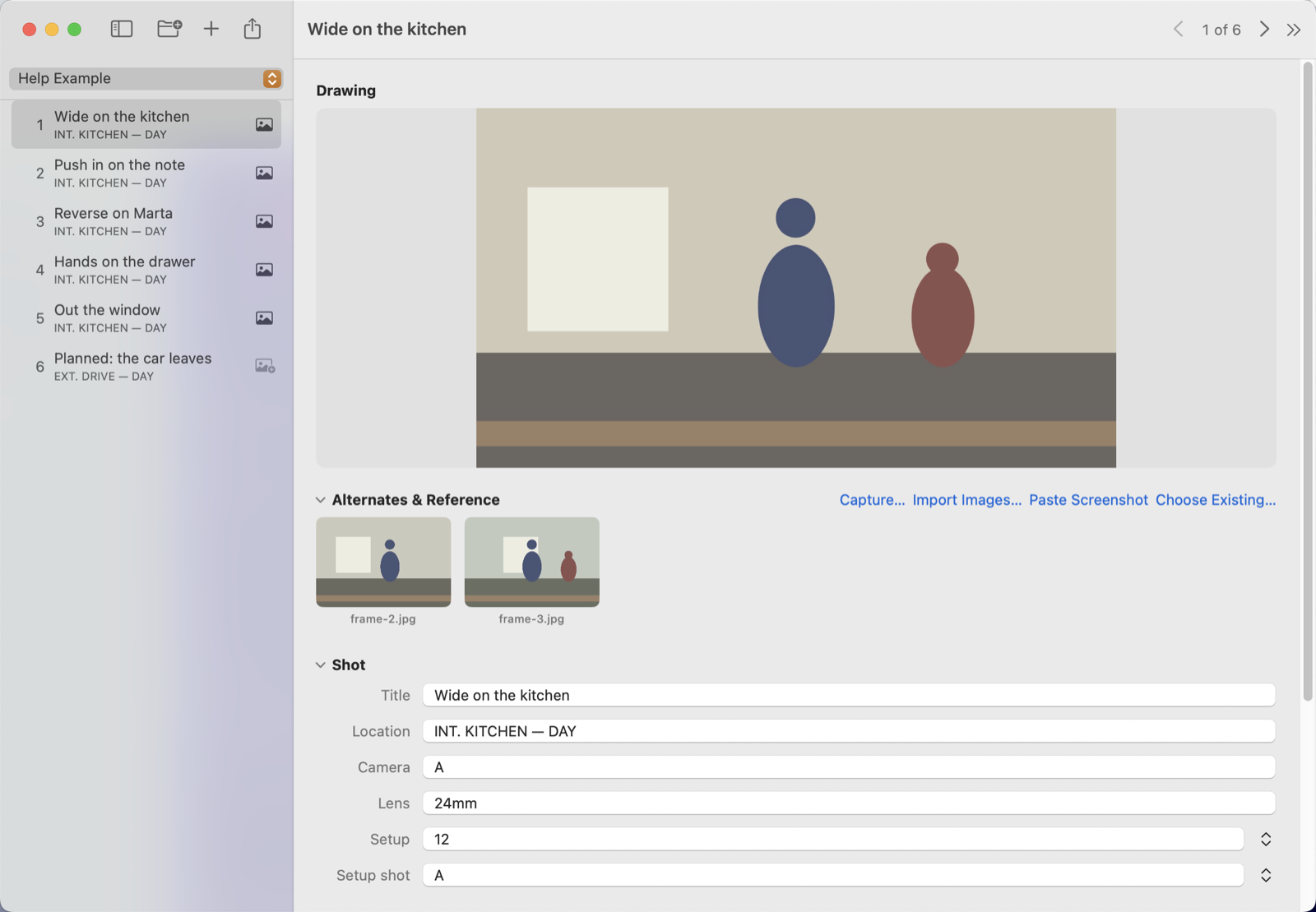
The shot editor: the drawing at the top, its alternates below, then the shot's fields.

Your Projects Folder #

Choose one folder to hold every movie, then create projects inside it.

  1. Choose File → Choose Projects Folder… and pick a folder to keep your movies in. The app remembers it between launches.
  2. Choose File → New Project… (⇧⌘N) and name it. The name becomes the folder name.
  3. Pick a project at any time from the menu at the top of the sidebar.

Every project is a folder inside the one you chose. Switching projects is just choosing a different one from that menu.

The app only reaches outside its own container through the folder you picked, so if you move that folder, choose it again.

What a Project Is on Disk #

A folder holding project.json and an images folder — nothing else.

A project is one folder. Inside it sits project.json — the database, holding your shots, their text and every setting — and an images folder holding every picture the project uses, flat.

  • Everything a project needs is inside its own folder, so you can drag it to another Mac, rename it or back it up without breaking anything.
  • project.json is plain text, pretty-printed, and meant to be readable. You can open it to see what the app recorded.
  • Images are referenced by filename only, so nothing breaks when the folder moves.

Choose File → Reveal Project in Finder (⇧⌘R) to see the open project's folder, or right-click the project menu in the sidebar.

A project made before the images folder existed is tidied up the first time you open it: loose pictures are moved into images for you.

The Shotlist

Adding Shots #

Six fields per shot, all optional, all printable.

Choose File → New Shot (⌘N) to add a shot to the end of the list. A new shot is deliberately blank — it shows as “Untitled Shot” until you name it.

Each shot carries six text fields: Title, Description, Location, Camera, Lens and Notes, plus its setup (see Setups). You choose which of them print when you export.

  • The Shot, Description and Notes sections collapse. What you collapse is remembered with the project and is how it opens next time.
  • A field that grows long enough to print small is flagged as you type, so the PDF doesn't surprise you.

Reordering and Deleting #

Drag to reorder, ⌘D to vary a setup, ⌘⌫ to remove.

  • Drag shots in the sidebar to reorder the list, or drag one tile onto another on the board.
  • File → Duplicate Shot (⌘D) copies a shot, including its pictures, and puts the copy straight after the original with “ copy” added to the title. The copy shares the original's images until you give it its own — nothing is written to disk.
  • File → Delete Shot (⌘⌫) removes a shot. If it has anything on it you're asked first, because there is no undo.

Deleting a shot never deletes a picture. A drawing belongs to the project, not to the shot showing it — another shot may be using it, and an unused image is still yours to reuse.

Pictures

Capturing #

Live preview, framing guides, and an optional automatic crop.

Choose File → Capture from Camera… (⌘K) to open the capture window with a live preview of the Mac's camera or one attached to it.

  • Tick as many aspect-ratio guides as you like; they're drawn over the preview as dashed boxes so you can compose to them.
  • Tick auto-crop and the capture is cropped to the guide — but only when exactly one guide is showing, since with two the app can't know which one you meant. The window tells you when the rule doesn't apply rather than quietly doing nothing.
  • A cropped capture never replaces its original: both files are kept, and you can swap back to the original at any time.
  • If the camera is mounted sideways or upside down, correct it in the capture window. Corrections are remembered per camera, not per project, because a camera that's upside down is upside down everywhere.

Project Settings has a default guide, so every capture window in that project opens with the ratio you actually work in.

Importing and Pasting #

Three more ways in, for files, screenshots and pictures already in the project.

  • File → Import Images… (⌘I) copies pictures into the project folder. The originals where they came from are left alone.
  • File → Paste Screenshot (⌥⌘V) takes a picture straight off the clipboard — ⌃⇧⌘4 writes no file, so there'd be nothing to import. A picture copied in the Finder pastes too, keeping its own name.
  • File → Choose Existing Image… (⇧⌘I) attaches a picture already in the project without making a second copy. It shows everything in the folder, including pictures no shot is using, each captioned with the shots already using it.

Paste is ⌥⌘V rather than ⌘V on purpose: ⌘V belongs to the text fields you're typing in.

However a picture arrives, its rotation is applied to the pixels as it's stored, so it crops and prints the same way it looks.

Blank Sheets #

Draw a shot that was never photographed.

  1. Select a shot with no picture and choose File → New Blank Drawing…, or click “Draw It…” in the empty drawing area.
  2. Pick a size — the sizes your project's own images already are, or type any size — and white or transparent paper.
  3. The sheet is added to the shot as its drawing and the drawing editor opens on it.

A blank sheet is an ordinary image in the project folder, so everything that works on a photograph works on a sketch: filters, vignettes, cropping, export.

Drawing and Alternates #

One picture is the shot; the rest sit beside it.

Each shot has one picture that acts as the drawing — the one that prints — and any number of alternates and reference pictures beside it.

  • Double-click an alternate, or right-click it and choose Make Drawing, to swap it into the drawing slot. Nothing on disk moves; it's a change of mind, not a copy.
  • Right-click any picture for its edit actions: crop, filter, vignette, flip and draw.
  • Alternates can print as a thumbnail strip under the drawing when you export.

Editing

How Edits Are Kept #

Every edit writes a new file; the picture you edited is never touched.

Cropping, filtering, vignetting, flipping and drawing all write a new file and leave the picture they were made from untouched in the project folder. The new copy is added to the shot as an alternate, with the option to make it the drawing.

  • A line under the drawing says what a copy is — “Filtered with Line Art, vignetted” — and offers Use Original to go back.
  • Re-tuning the same look overwrites the same file rather than leaving a trail of near-identical pictures.
  • A filter, a vignette, a flip and a drawing all render together into one file, so you can combine them without stacking copy upon copy.

There is no undo in the app and every change saves immediately. The safety net is that originals are always kept.

Cropping #

Reframe to a ratio, and re-crop later from the original.

Right-click a picture and choose Crop…, or File → Crop Drawing… (⇧⌘K). Drag the box to choose where the crop sits rather than always cutting from the middle, and pick a ratio.

Cropping always works from the uncropped original, so re-cropping to a different ratio can widen the frame back out and never compounds the loss from repeated saves.

Filters #

Make a photograph read as a drawing. Add your own by dropping a file in.

Right-click a picture and choose Filter…, or File → Filter Drawing… (⇧⌘F). Pick a look, adjust its sliders against a live preview, and apply. Black and White, Cartoon, Comic Book and Line Art are supplied.

  • File → Filter All Drawings… applies one look to every shot's drawing in a single pass, and tells you afterwards what it skipped and what failed rather than stopping at the first problem.
  • Filters are ordinary JSON files in a folder. Drop one in, choose File → Filters Folder → Refresh Filters, and it appears — no rebuild.
  • The supplied filters are files too, so the easiest new filter starts as a copy of one that works. File → Filters Folder → Restore Built-In Filters puts them back.
  • A filter file with a mistake in it is reported by name with what's wrong, rather than quietly vanishing from the list.

Vignettes #

Pull the eye to the middle of the frame — or anywhere else in it.

Right-click a picture and choose Vignette…, or File → Vignette Drawing… (⇧⌘V). Drag the rings on the picture itself, over a live preview of the real result, or type the numbers in: size, softness, density and colour.

  • The centre can go anywhere in the frame, so the vignette can favour whatever the shot is about.
  • A dark vignette closes the frame in; a white one fades it out.
  • Save settings you like as named presets, and set one as the project's default so every new vignette starts there.
  • File → Vignette All Drawings… does the whole project in one pass.

A vignette can sit on top of a filter — the two render together into one file, so you can tune either afterwards without losing the other.

Flipping #

Face the scene the other way.

File → Flip Drawing Horizontally (⌃⌘H) and Flip Drawing Vertically (⌃⌘V) mirror the shot's drawing. Both are ticked when they're on, and choosing the same item again is how you turn it back off.

Flipping replaces the shot's picture rather than adding an alternate — a mirrored shot isn't a version to compare against, it's the shot the right way round. Nothing is lost: the unflipped picture stays in the folder, and turning the last axis off puts the shot back on it.

Drawing on a Picture #

Strengthen a line, or draw in what the camera didn't catch.

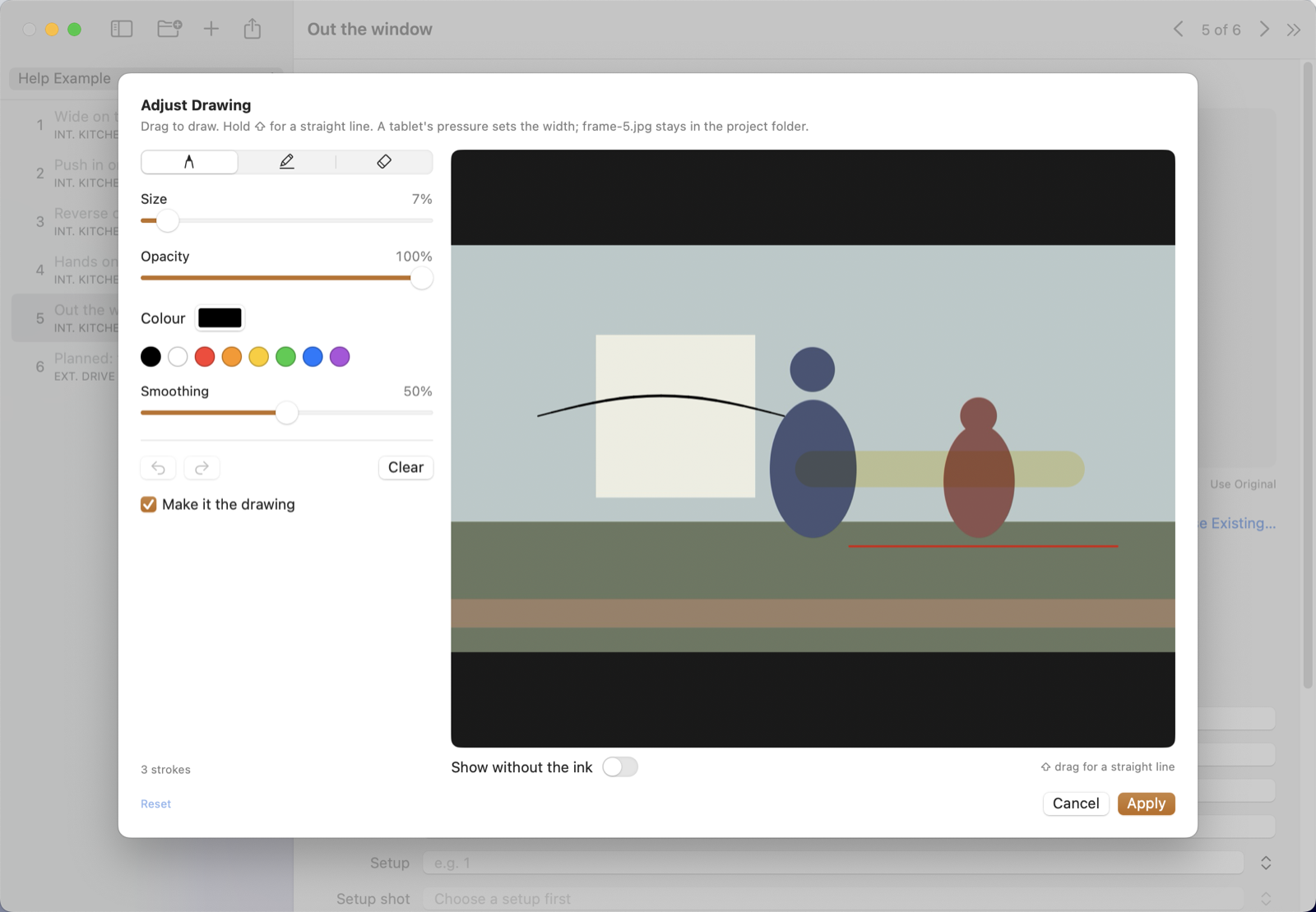
Right-click a picture and choose Draw…, or File → Draw on Drawing… (⇧⌘D). You draw on the picture as it currently reads, with any filter and vignette already rendered underneath, which is the point when you're strengthening a line a filter left weak.

The drawing editor: tools and colours on the left, the picture to draw on at the right.
  • Pen, highlighter and eraser, with size, opacity and colour. The highlighter is see-through, so what's under it still reads.
  • Hold ⇧ while dragging for a straight line — horizons, edges, eyelines.
  • The eraser lifts whole strokes it touches, including in the middle of a long line.
  • Smoothing steadies a shaky hand or a trackpad. Turn it down to draw exactly what you move.
  • ⌘Z and ⇧⌘Z undo and redo inside the editor.

If you have a pen tablet, pressing harder draws a thicker line. A mouse or trackpad draws an even one, so nothing is lost by not having a tablet.

Strokes are kept, not painted in. Reopen the editor and they're still there to adjust, and a filter or vignette underneath can be retuned later without losing the ink.

The ink always goes on last, over the look. So a filter applied afterwards affects the picture under your strokes — on a sketch, that's the blank paper. To filter the lines themselves, apply the drawing, make it the drawing, then filter that copy.

Setups

Setups and Shots #

Group the shots you'll cover from one camera position.

A storyboard is told in story order, but a shoot works through camera setups — and one setup often covers shots that are nowhere near each other in the story. Each shot can name the setup it's covered from, and its shot within that setup.

  1. Open a shot and find Setup and Setup shot at the bottom of the Shot section.
  2. Type a name to create one, or click the button beside the field to pick one already in use.
  3. The setup list shows how many shots each covers; the setup-shot list shows which storyboard shots each one covers.

Suggestions follow a slate: setups are numbered and the shots within one are lettered — 12, then 12A, 12B. Both suggest one past the highest in use, so a gap left by a dropped shot isn't refilled.

Two shots can share one setup shot. That's how you say a single take covers both.

Reading in Setup Order #

Put the board and the PDF into shooting order.

The board and the PDF export can each be read in setup order instead of story order. Setups sort the way a call sheet reads — 2 before 10, A before B — then by shot within the setup, then in story order. Shots with no setup come last.

  • On the board, choose Setup Order from the Order menu in the toolbar. Each setup gets a heading.
  • For the PDF, set Page order in the export sheet.
  • Case and stray spaces don't split a setup: “a” and “A ” are the same one.
  • Shots keep their storyboard numbers everywhere, so a page in setup order still points back to its place in the story.

Dragging tiles to reorder works in storyboard order only. In setup order the position comes from the setup names, so a dropped tile would just spring back.

The Board

Tile View #

Every drawing at once, instead of one shot at a time.

View → Tile View (⌘2) replaces the window with every shot's drawing, left to right and top to bottom. View → Shot Editor (⌘1) goes back.

The board, with every shot's drawing, its number and its title.
  • Click a tile to select it and stay on the board; double-click to open that shot in the editor.
  • The arrow keys move the highlight: left and right through the list, up and down a whole row.
  • Drag one tile onto another to reorder the shotlist.
  • Shots with no drawing get a tile too, marked as such — a board with gaps is the true picture of where the movie stands.
  • Tile size and the view mode are remembered with the project.

The selection is shared with the shot editor both ways, so switching modes always lands on the shot you were looking at.

Exporting

Exporting #

One shot per page, with the fields you choose.

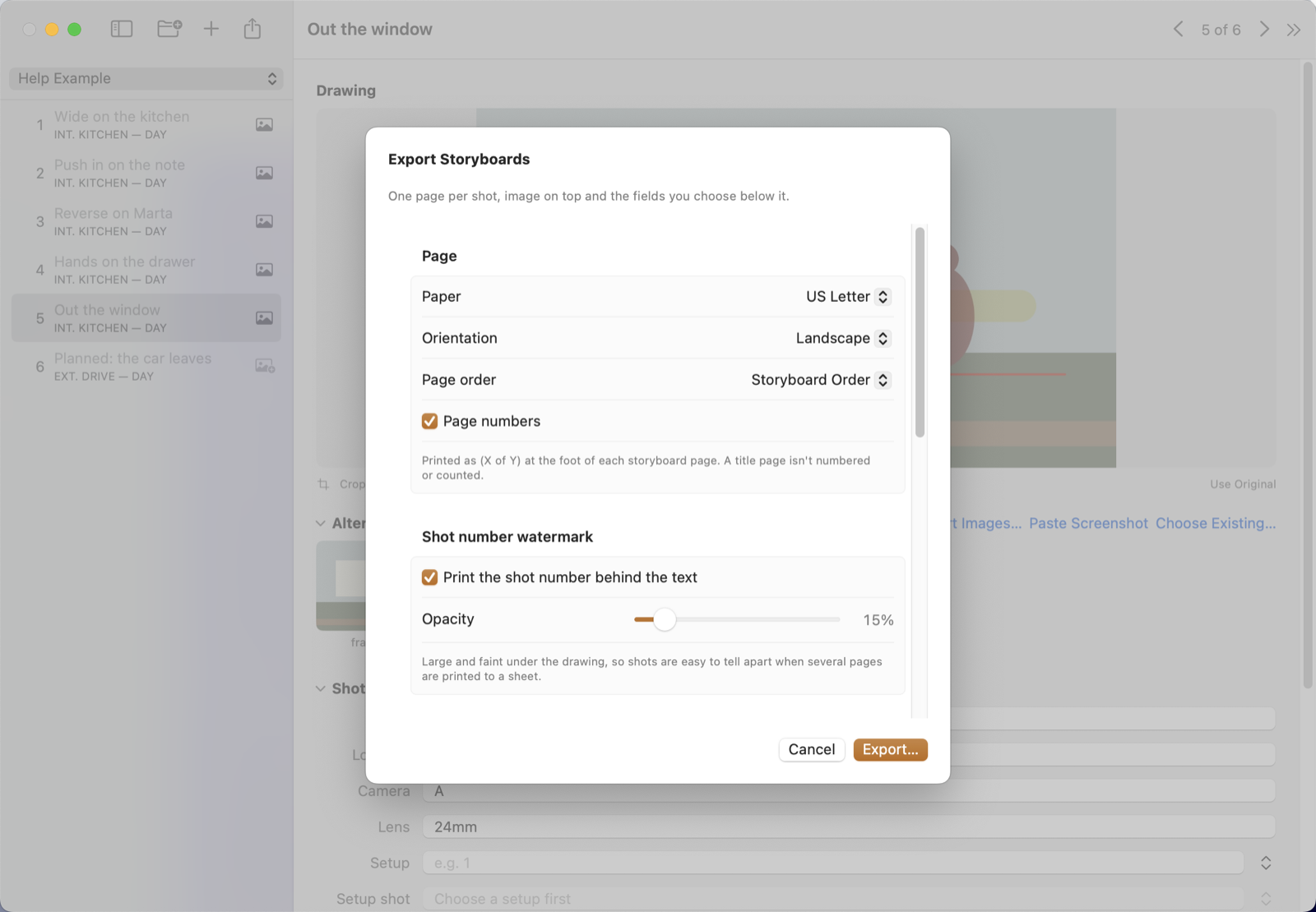
File → Export Storyboards as PDF… (⌘E) opens the export sheet. Choose paper size and orientation, which fields print below the drawing, and whether alternates print as a thumbnail strip. Everything you choose is stored with the project, so the next export matches.

The export sheet: page setup, watermark, title page and the fields to print.

Every shot becomes exactly one page — never two — and a shot with no drawing still gets its page.

An exported page: the drawing, the fields, the shot number behind them, and the page number at the foot.

Afterwards you're told what needed attention: text that printed small, text that had to be cut, missing picture files, and alternates that wouldn't fit the strip.

How Text Is Fitted #

Starts at 24 pt and steps down only as far as it must.

Text starts at 24 pt — titles included — and steps down a point at a time until the shot's fields fit its page. If 12 pt still isn't enough, the drawing gives up some height before the text goes any smaller; only then does the text continue down to 6 pt.

  • Only shots that ended up below 12 pt are reported afterwards. Stepping down a little is normal and isn't worth a warning.
  • As you type, a field long enough to print small is flagged in the editor, so you find out before the PDF does.
  • If even the smallest size won't fit, the text is cut off and the report names the shot.

The Shot-Number Watermark #

A big, faint number so pages are easy to tell apart.

Each page can print its shot number large and faint behind the fields, which is what makes a sheet printed four pages to a side readable across a table. It's on by default; the opacity is adjustable in the export sheet.

The number is the shot's place in the storyboard — the same number the sidebar and the tiles show — even when the pages are printed in setup order. Only the “(3 of 12)” at the foot counts pages.

The Title Page #

An optional first page, laid out like production paperwork.

Turn on a title page in the export sheet and choose Edit Title Page… to fill it in. The standard credits are there to fill in, and you can add rows of your own.

  • A row with nothing in it doesn't print, so the whole standard set can sit in the editor unused.
  • Rows sit in slots — title, credits, notice, and the two bottom corners — which is what makes the page look like paperwork rather than a list.
  • A logo or key frame can go above the title or at the foot.
  • The title page isn't numbered and isn't counted, so “(1 of 12)” still means the first of twelve shots.

Page Order #

Print in story order, or in shooting order.

Page order can be Storyboard Order or Setup Order. In setup order the pages are grouped by setup, then by shot within the setup, with shots on no setup last.

Tick the Setup field under “Include below the image” when you print in setup order, or the pages won't say which setup they belong to. The export sheet warns you if you forget.

Settings

Stored with the Project #

Defaults that travel with the movie, not with the Mac.

File → Project Settings… (⇧⌘,) holds the choices stored with the open project:

  • Default aspect ratio — the framing guide every capture window in this project opens with.
  • Sections expanded by default — which parts of the shot editor open. Collapsing a section while editing updates this too; there's no separate “current” state to drift.
  • Default vignette — where new vignettes in this project start. Set it from the vignette editor with “Use as this project's default”.

The export settings, the tile size, the view mode and the board's order are stored with the project in the same way — leave a project on the board in setup order and that's how it opens next time.

Filters and vignette presets are the exception: those live in folders on this Mac, since a look you dialled in belongs to you rather than to one movie.

Reference

Keyboard Shortcuts #

Everything with a chord, in one place.

⇧⌘N New project
⇧⌘R Reveal project in Finder
⌘N New shot
⌘D Duplicate shot
⌘⌫ Delete shot
⌘K Capture from camera
⌘I Import images
⇧⌘I Choose existing image
⌥⌘V Paste screenshot
⇧⌘K Crop drawing
⇧⌘F Filter drawing
⇧⌘V Vignette drawing
⇧⌘D Draw on drawing
⌃⌘H Flip drawing horizontally
⌃⌘V Flip drawing vertically
⌘E Export storyboards as PDF
⇧⌘, Project settings
⌘1 Shot editor
⌘2 Tile view
⌘⌥← Previous shot
⌘⌥→ Next shot
⌘? This help

Inside the drawing editor: ⇧ while dragging draws a straight line, ⌘Z undoes and ⇧⌘Z redoes.

Files and Fixing Things #

Where everything lives, and what the warnings mean.

  • Pictures live in the images folder inside the project folder, flat. Filenames only ever appear in the database, so moving the project folder is safe.
  • Filters and vignette presets are JSON files in folders on this Mac, reachable from File → Filters Folder and File → Vignettes Folder. Refresh re-reads them; Restore Built-Ins puts the supplied ones back without overwriting your edits.
  • Derivative files are named after what made them — frame-cartoon.jpg, frame-crop.jpg, frame-drawn.png — so the folder reads without opening the database.

Messages you may see:

  • “The … filter isn't in the filters folder any more” — a copy was made with a filter file that has since been deleted or renamed, so it can't be rebuilt. Put the file back, or work from the original picture.
  • “Image file missing — the page was exported without it” — the database references a picture that isn't in the folder. The page is still printed, because losing a whole shot would be worse.
  • “Text was too long even at the smallest size” — that shot's fields were cut off. Shorten a field, print fewer fields, or use a larger paper size.

There is no undo and every change saves as you make it. What protects you is that the picture an edit was made from is always kept.

Still stuck?

If something isn't covered here, or doesn't work the way it says, send a note saying what you were doing and what you saw.

Send a note